Add investments
Add an investment
In the
 Investments section, determine where you want to add your investment and click the appropriate row. If you want to insert the investment at the top level, click Grand Total.
If needed, add folders to structure your investments:
Click Category to enter a folder on the same level.
Click Sub-category to enter a folder on the subordinate level.
If you know the detailed breakdown of the planned costs:
Mark the row under which you want to create a investment by clicking it.
Click the Line Item button.
A line item is inserted at the selected position and its name field is shown in edit mode:
Enter the name of your investment.
Click again outside the name field. The line item is added.
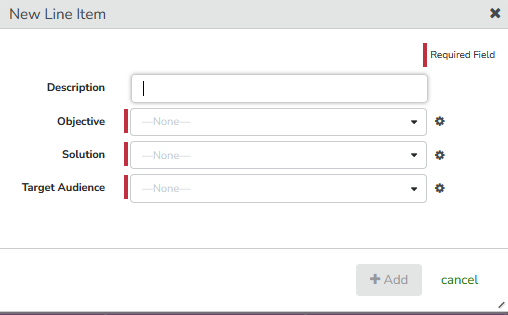
The quick entry dialog New Line Item with several edit fields is shown.
For more information on the quick entry form see Quick entry form.Enter the name of your investment in the Description field.
Edit the fields of the form. Required fields are marked red.
Click Add. The line item is added and its most important fields are filled.
If you want to plan investments for which you do not yet know the details:
Mark the row under which you want to create a placeholder by clicking it.
Click the Placeholder button.
Enter the name of the placeholder.
Click again outside the name field. The placeholder line will appear in italics to differentiate it from the other investments.
Repeat steps 2-4 until your investment plan is completed.
You have added the investments to your plan.
Quick entry form
To streamline data entry your organization can set up a quick entry form. If the quick entry form is activated, it will show up when you add a new line item. The form will contain the most important fields you have to fill when creating a line item. Fields you must fill are marked red as required fields.
Next steps:
Once investments are added, you add details and the planned spend for the investment, see Add data to investments.