Connect activities to investments
To use an investment item to fund marketing activities, you can connect one or multiple activities to it.
If only one activity is connected to an investment, 100% of its funds are automatically allocated to the activity.
If you connect two or more activities to an investment, you can choose how you want funds allocations to be distributed between these activities. For more information, see Set how funds are distributed to connected activities.
Connect activities to an investment
In Uptempo, click
 Investments in the navigation to view the investment hierarchy.
In the investment hierarchy, find the investment that you want to connect activities to and click
 Open Panel. The investment's Details Panel opens.
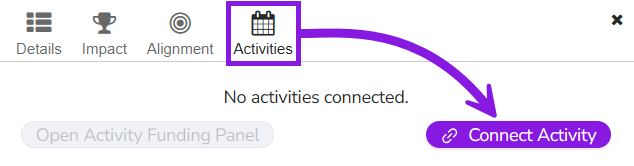
Click Activities, then click Connect Activity:
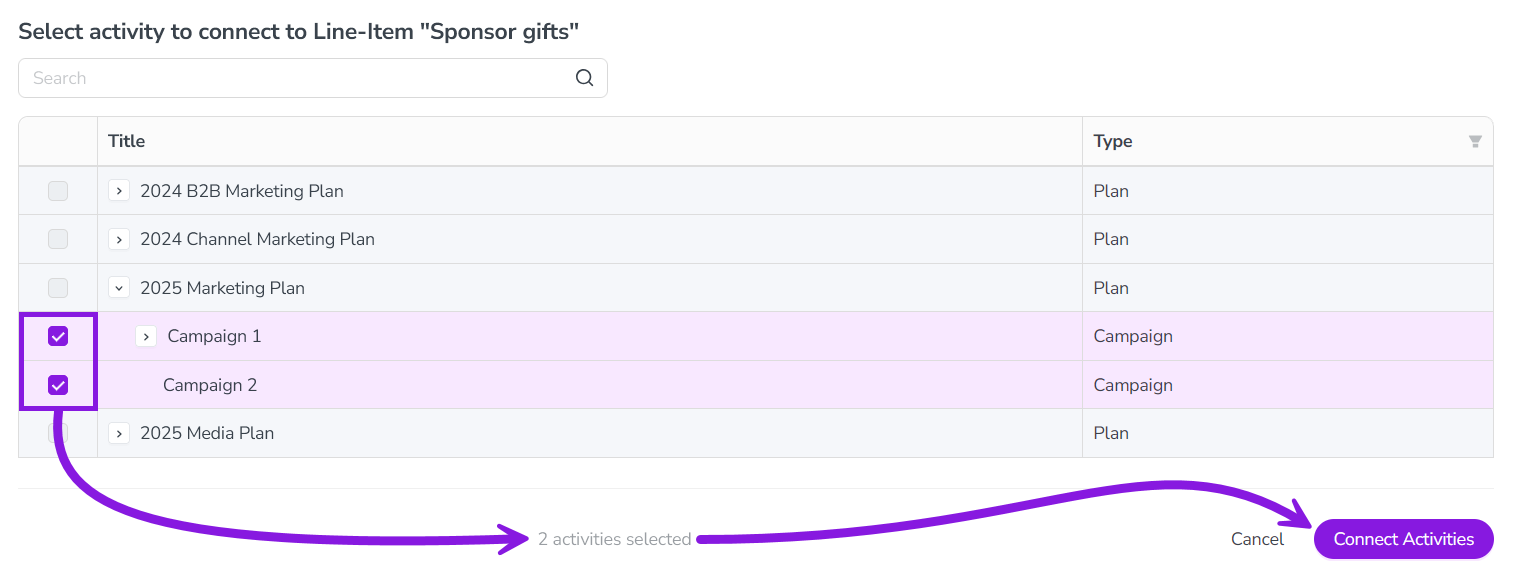
In the Select activity to connect to... dialog, select the activity (or activities) you want to connect, then click Connect Activities:
The list of activities closes, and the activity (or activities) you connected are now displayed in the Activities tab of the investment's Details panel:
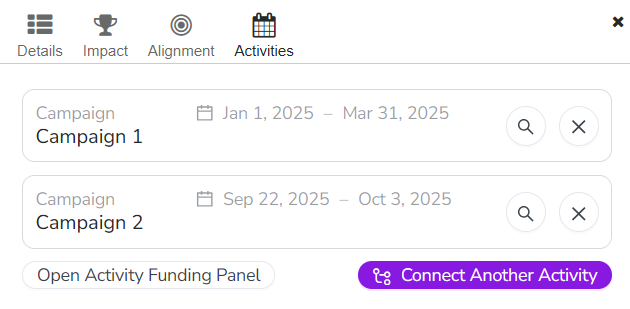
Click
 Search to view the details of an activity in Uptempo Campaign Management.
Click
 Disconnect to remove an activity from the investment.
You have connected activities to an investment.
Adjust investment funds allocation
When you connect multiple activities to an investment, Uptempo will automatically distribute the investment's funds equally between all connected activities. If you want to adjust these allocations, you can use the Activity Funding Panel.
For instructions, see Change how an investment's funds are allocated