View and manage budget reallocation requests
After you have submitted budget reallocation requests, you can view your open requests and make changes to them if needed.
View budget reallocation requests
Go to the
 Budgets section.
Inline with the applicable folder, sub-folder or investment plan, click transfers in the Transfers column. The Transfer Requests overview is displayed and shows all pending requests for the selected folder, sub-folder or investment plan:
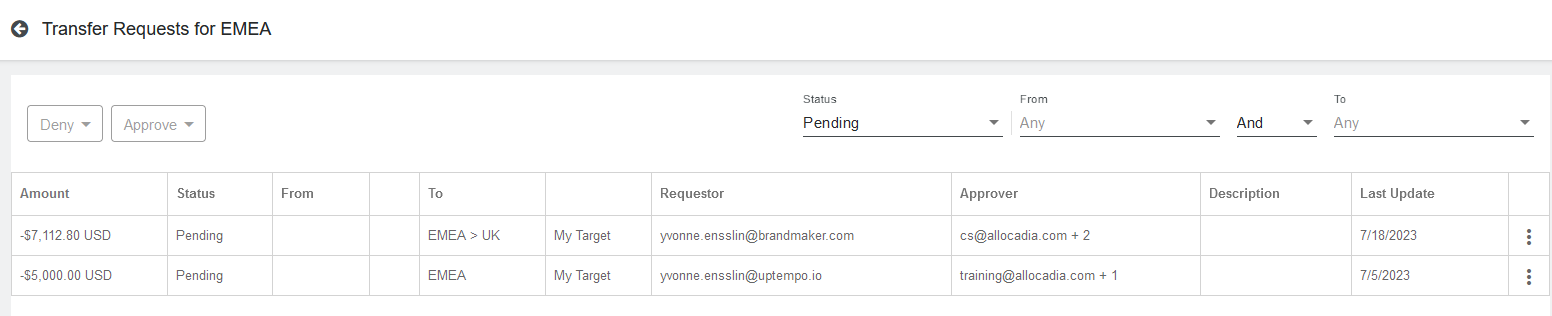
On the Transfer Requests overview:
The buttons Deny and Approve are only active if you are an assigned approver for the applicable hierarchy level and if you have selected one of the pending requests.
If you want to see all requests or request with other statuses for this hierarchy level, use the Status filter on the right side above the table to display the requests.
If you want to see the requests for other activity plans, set the From and To filters accordingly.
In the last column of the overview table, click
 More actions to view additional actions for each transfer request:
Click Edit to change details of the request.
Click Delete to delete the request.
Click Details to see detailed information of the request.