What's new: 2025.2
Discover all the new Uptempo features introduced with the 2025.2 release, available from February 26, 2025.
For details about bugs that have been fixed this month, see the bug fixes page.
For notifications about functionality that is planned to be retired, see the deprecations and discontinuations page.
Uptempo Platform: Administration
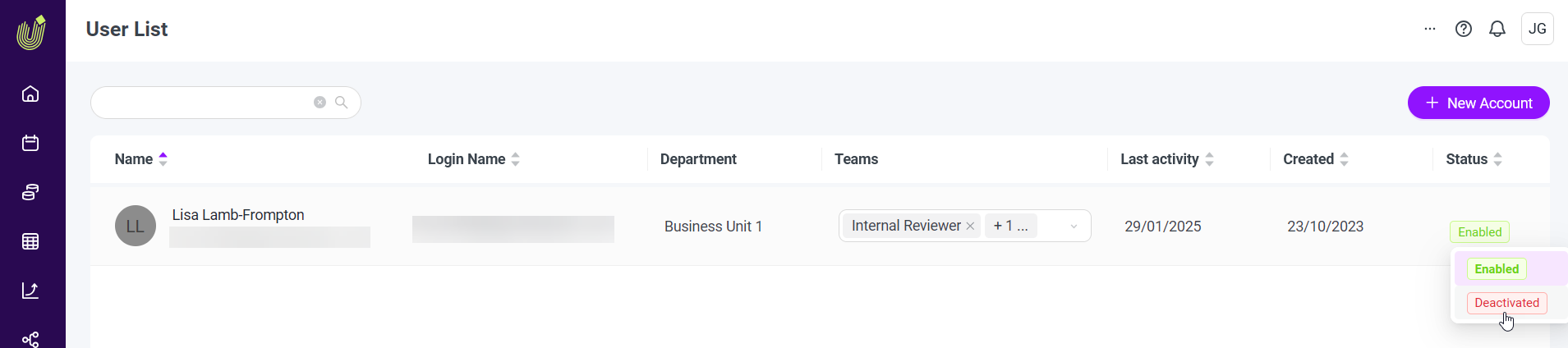
New Status attribute for user accounts
With the new Status attribute, shown by default on the User List, administrators can now view the current status of all user accounts in their Uptempo instance at a glance. As an admin, you can quickly see if a user account is currently active; if it has not yet been activated or has been manually deactivated; or if it has been temporarily locked out due to failed login attempts. You can also change user statuses right from the User List, making it simple to manage your user accounts for security and licensing purposes.
Campaign Management: Activities
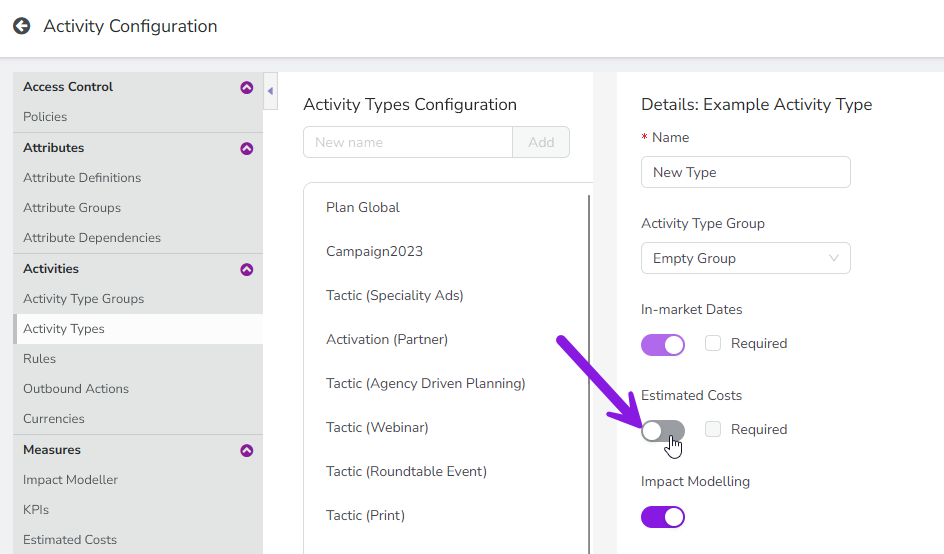
Turn the Estimated Costs feature on or off for individual activity types
Previously, the Estimated Costs feature was activated by default for all activity types, and could not be hidden from activity types where it was not applicable. Now, administrators can turn Estimated Costs on or off for specific activity types: if you turn this feature off for an activity type, the Estimated Costs tab is not shown on the details panel of any activity of that type.
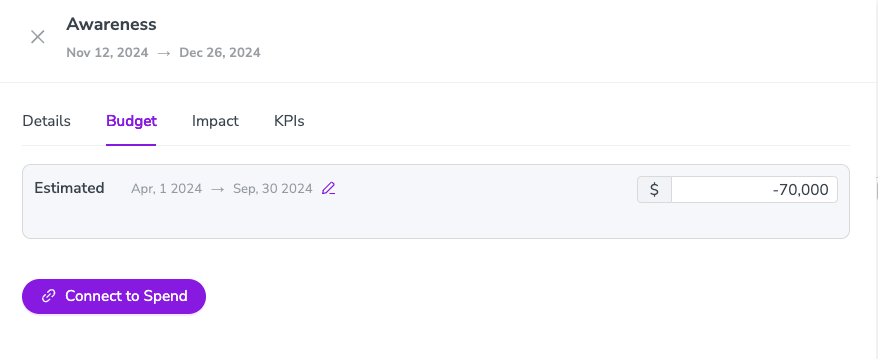
Support for negative amounts in Estimated Costs
The Estimated Costs feature now supports entering amounts starting with a minus (for example -4000) to indicate when a cost estimate should be reduced by some amount. This is useful in cases where a marketing activity is being subsidized by external funding, such as a partner sponsorship or grant. Negative amounts are supported for both manual inputs and via the API, and Estimated Costs roll-ups accurately take negative amounts into account by subtracting them from the total.
Terminology update: Data Granularity → Time Granularity
For consistency, we have renamed the settings Input Format (in Activity Configuration > Estimated Costs) and Data Granularity (in details panel > Impact > Actuals). Both settings are now called Time Granularity to better reflect that these settings control the level of detail used to capture and display data with regard to timeframe (for example monthly, quarterly, etc.).
Financial Management: API
Support for more Spend data categories
Uptempo Financial Management currently supports four separate data categories (Planned, Committed, Actual, and Expected), but previously, only data related to the Planned data category was available via the API. Now, you can use the API to pull data related to all the Spend data categories, for example for integration with other systems.
Work: Review Manager
Invite multiple users to reviews in one step
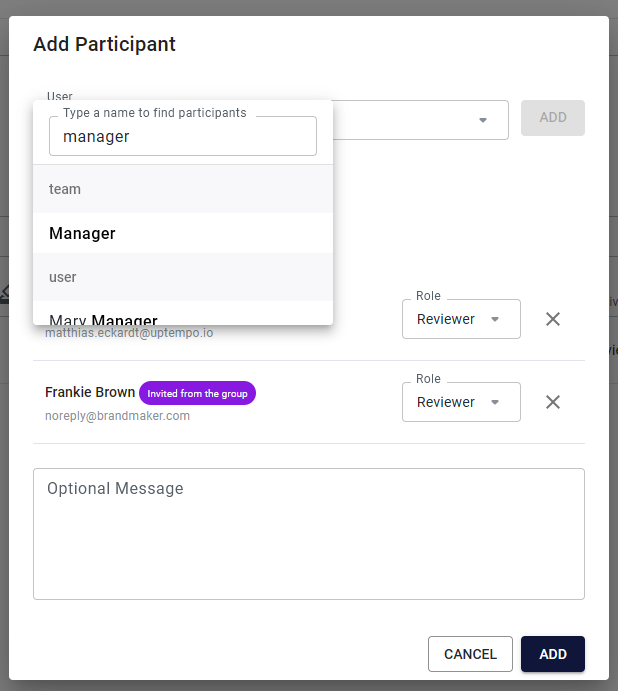
To save time when setting up reviews, you can now invite multiple users to a review at once. The redesigned Add Participants dialog now supports adding more than one user to a review, so you no longer need to add them one-by-one. You can even choose to add a user group to a review, which adds all the group's members to the review with a single click. When you add a user group to a review, its members are listed separately as review participants, so you can still assign roles to each participant individually.
Search by job name
The search function in the Review Manager widget can now find reviews based on the name of the connected job (from Job Manager). To find reviews using the context of their connected job, type the job name into the search field, and the list of reviews is filtered to display only reviews where the connected job name matches your search term.
Work: Marketing Planner
Enhanced Sort and Filter dialog
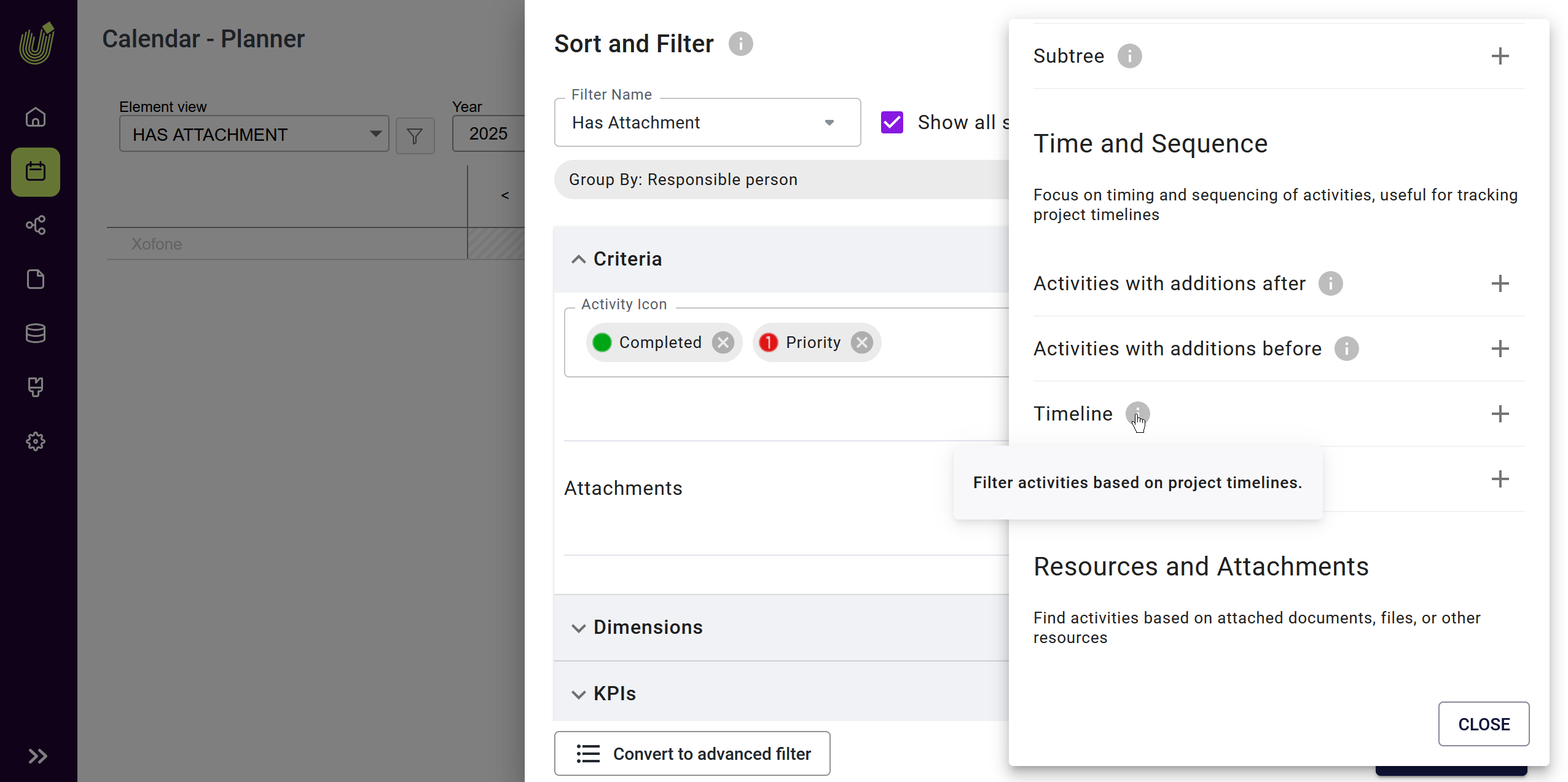
The Sort and Filter dialog now features a cleaner, more intuitive interface with logically grouped sections and helpful descriptions for each filtering option. When you open the dialog, you'll find improved tooltips and organized categories that guide you through filtering activities by type, structure, or timing – making it simpler to find exactly the data you need.
To use the new features, click Sort and Filter in the toolbar and explore the streamlined filtering options. You'll notice each section now includes clear descriptions and tooltips that explain their purpose, such as filtering by activity details or organizing by structural relationships.