Set custom UI labels for activity budget details
As an administrator, you can override the default labels shown in the Budget section of the activity details panel to more closely align them with your organization's preferred terminology.
You can change the labels of:
The Estimated Costs panel
The spend data category panels:
Planned
Expected
Committed
Actual
Set custom UI labels for the Budget section on activities
In the
 Activities section, click
  Settings: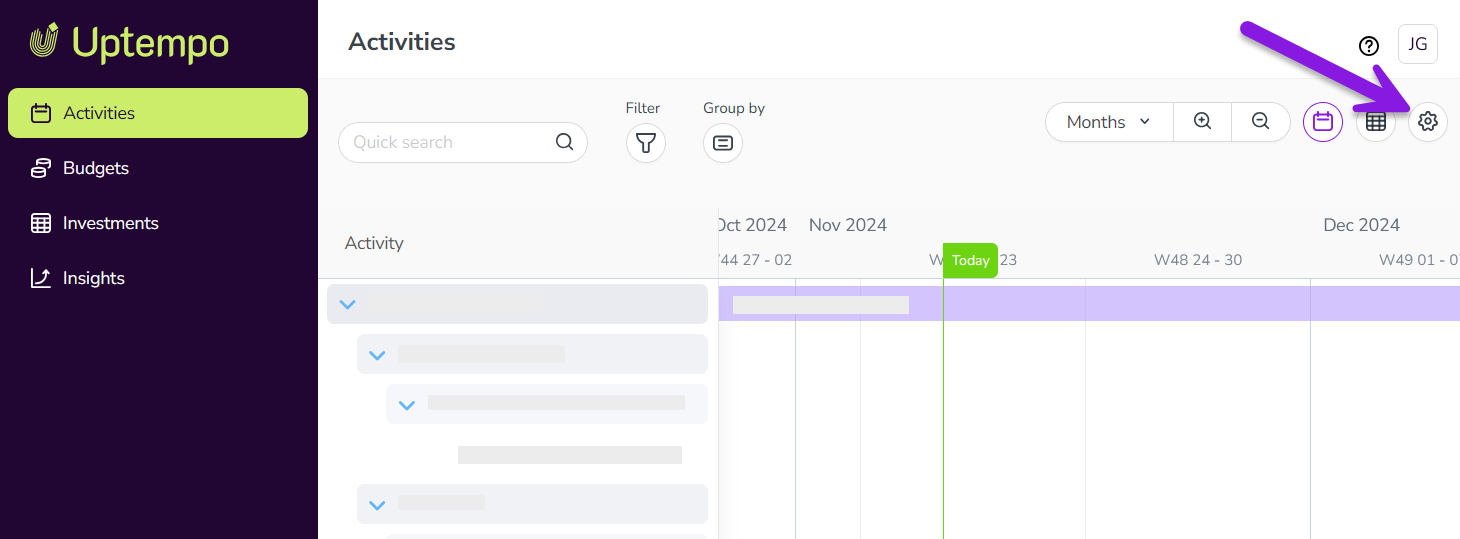
In the Activity Configuration menu, click Configuration > Labels.
For any label you want to customize, enter the custom label you want to use into the text field.
To save and apply your changes, click Save.
Your changes take effect immediately, and the custom labels you specified are displayed in the Budget section of the activity details panel.
22 May 2026