Create purchase orders (POs) by importing
In Uptempo, purchase orders (POs) are records of services you've ordered that represent committed spend against your budget. You can import POs directly from a spreadsheet instead of entering them manually.
Prepare the import spreadsheet
Requirements
First row: The first row must be a header row with unique column names. If it's blank, you're prompted to add headers before the import proceeds.
Rows: Empty rows aren't accepted. You're prompted to delete them before the import proceeds.
Worksheets: The worksheet you're importing must be the first tab in the workbook.
Linked spreadsheets: Remove any linked spreadsheets from your file before importing. If the file includes linked spreadsheets, this causes an error during upload.
Field formatting
Unused Columns: You don't need to remove unused columns from your spreadsheet. Skip them during field mapping instead.
Date formats: Designate one date column as your primary date column. This column's format is used in reporting.
Uptempo recognizes the following date formats:
Template
Format type
Example
MM/DD/YYMonth/Day/Year, 2-digit year
03/14/21DD/MM/YYDay/Month/Year, 2-digit year
14/03/21M/DD/YYYYMonth/Day/Year, 4-digit year
3/14/2021DD/M/YYYYDay/Month/Year, 4-digit year
14/3/2021YYYY-MM-DDYear-Month-Day
2021-03-14DD-MMM-YYDay-Month abbreviation-Year
14-Mar-21MMM-YYMonth abbreviation-Year
Mar-21MMonth number only
Month (1-12)M/DD/YYYY HH:MM:SSMonth/Day/Year with time
3/14/2021 18:25:16YYYY/M/DD HH:MM:SSYear/Month/Day with time
2021/3/25 18:25:16Multi-select fields: Uptempo recognizes
Option, %as a single multi-select option with a specified percentage allocation.Separate multiple options with
::. For example:Brand Awareness, 50.0::Lead Generation, 50.0.Multi-select allocations must total 100% or the import fails.
Input options must match the multi-select field options exactly. Any variation in spelling or symbols creates duplicate options.
Purchase order splits
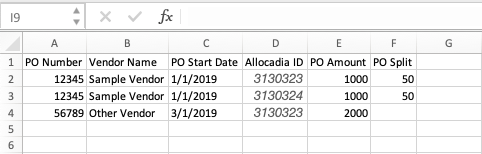
To split a PO across multiple budget line items, include a PO Split column in your spreadsheet with the percentage allocation for each line:
Split percentages for a single PO must total exactly 100%. Don't include the percent symbol.
Leave the PO Split column empty for POs that aren't being split.
All other field values must be identical for each line of the split, including PO Amount, Vendor Name, and start and end dates.
The PO Amount must represent the full amount, not the individual split portion.
To learn more about splitting POs, see Splitting: One PO, multiple line items.
Purchase order amortization
To amortize a PO across multiple months, include an end date column in your spreadsheet:
Leave the end date column empty for POs that aren't amortized.
PO Amount is automatically divided equally across the months between the start and end dates.
To use a different distribution, edit the PO after import. See Edit purchase orders (POs).
To learn more about amortizing POs, see Amortizing: One PO, multiple months.
Duplicate handling
During import, Uptempo can check incoming records against existing purchase orders to detect duplicates. You can control how any duplicates are handled.
While setting up an import, you choose whether the system checks for duplicates at all, and how to identify a match (by specific fields or all fields). When a match is found, you choose whether to replace the existing record or ignore the incoming one.
Import purchase orders (POs)
Import POs into Uptempo
In the
 Budgets section, click
  Import > POs to open the Import POs setup assistant.
Use the Import Location menu to select the budget for which you want to import purchase orders. Click Browse to choose your import file, then click Next.
On the Assign Fields step, match your spreadsheet column headers to the associated import fields. Use the Date Format menu to select the date format used in your date columns.
Optional: If the import file contains purchase orders amortized over multiple months, select the Amortize POs option.
For POs to be amortized, the import file must specify both start and end dates.
Amortized PO amounts are allocated equally across the specified date range. To customize the allocations, see Edit purchase orders (POs).
See Purchase order splits for more information.
Optional: If the import file contains purchase orders to be split between different investment line items, select the Split POs option.
Use the PO Identifiers field to select the columns in the import file that identify the POs to be split.
Use the Split Percentage Field menu to select the column in the import file that specifies the percentage allocation for each line item.
See Purchase order amortization for more information.
On the Manage Duplicates step, choose how to handle duplicate records, then click Next. You can choose between these options:
- Match using specific spreadsheet field(s)
Identifies duplicates based on matching one or more selected fields in the import file. Select the fields to use for matching in the fields panel.
Optional: Deselect Replace existing items with matches if you want to keep existing data in Uptempo whenever a duplicate is identified. Select this option to replace the existing data with data from the import file.
- Match using all spreadsheet fields
Identifies duplicates based on matching all fields in the import file.
- Allow duplicates
Skips duplicate detection. If duplicates exist in the import file, duplicate entries are created during import.
Optional: On the Map Import Data step, identify the line items to map purchase orders to on the Define Mapping Rules tab:
Use the Spreadsheet field menu to select the column that identifies the line item.
Use the Uptempo field menu to select the equivalent Uptempo field.
Optional: Use the Unique ID field regular expression field to define the mapping rule using a regular expression.
For identical matching, keep the default (
.*).For more complex mappings, see Import data.
Click Apply Unique Rule, then switch to the Review Applied Rules tab and confirm the line items mapped correctly. If the mapping isn't correct, adjust your settings on the Define Mapping Rules tab and click Apply Unique Rule again.
To start the import, click Action > Import on the Map Import Data step. Your import is processed, and a progress indicator is displayed.
After the import finishes, check the import summary on the Review Import step to see the results. To exit the Import POs setup assistant, click Done.
The import is complete.
To review and manage mapped, unmapped, or duplicate items, go to the Budgets section and click  Import History and Schedules for the folder, sub-folder, or investment plan you imported into.