Filter by activity funding
If you have connected activities to investments, you can filter the investment hierarchy table in the  Investments section to display:
The part of any investment that is already allocated to connected activities
The part of any investment that is not yet allocated to connected activities
Both of these views are useful for understanding your current activity funding situation. They show you on a per-investment basis how much of your budget you have already committed, and how much is left for currently unfunded (or partially funded) activities.
Filter options
You can select between three options for filtering the investment hierarchy based on activity funding:
Show Allocated Amounts Only: Select this option to see how much of each connected investment is already funding activities. When selected:
In the Hierarchy column: Displays only investments that (1) are connected to at least one activity, and (2) have funds that have been fully or partly allocated to those activities. All investments that are not connected to any activity are hidden from the table.
In all funding amount columns: Displays only the amount of each investment that is currently allocated (Currently Allocated Amount = Investment Total Funds - Unallocated Funds) .
Show Unallocated Amounts Only: Select this option to see how much of each investment is still available to fund activities. When selected:
In the Hierarchy column: Displays only investments with funds that are not yet allocated. This includes both investments that are connected to activities but are only partly allocated, and investments that are not yet connected to any activity. All investments that are fully allocated to connected activities are hidden from the table.
In all funding amount columns: Displays only the amount of each investment that is currently unallocated (Currently Unallocated Amount = Investment Total Funds - Allocated Funds).
All Investments: Select this option to remove all filtering based on activity funding. When selected, displays all investments and their full amounts in the table, regardless of activity funding.
This is the default option.
Filter investments by activity funding
Filter investments by activity funding
In Uptempo, select
Investments in the navigation menu to view the investment grid.In the table toolbar, use the Filter by Activity Funding menu to select the filter option you want to use :
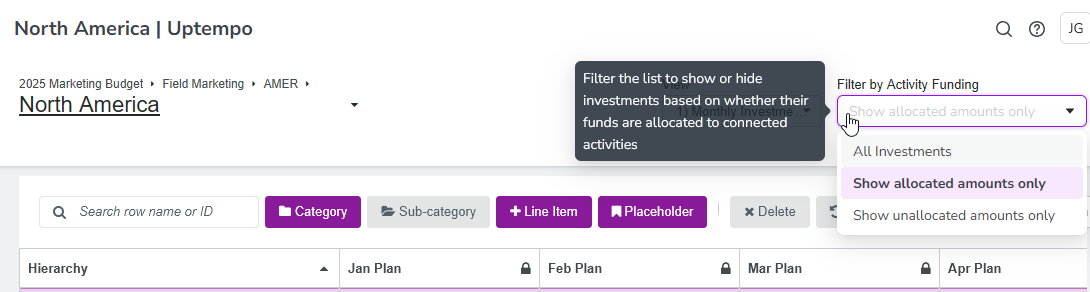
After you make a selection, the investment hierarchy table reloads, and is displayed with the selected filter applied.
To remove an activity funding filter, open the Filter by Activity Funding menu and select the All Investments option. The activity funding filter is removed, and all investments and their full amounts are shown.