Filter investments by forecast status
If you use forecast status tags, you can see the total amounts in your investment plan that are forecasted, committed, or actually spent. This is a quick way to gain insight on the status of marketing costs to date.
- Example
Sheila wants to see what amounts are actually spent. In the Forecast columns, she has maintained a status for each line item and placeholder. When the event has taken place or services have been received, Sheila assigns the status Occurred (note that the statuses may have different names in your Uptempo instance).
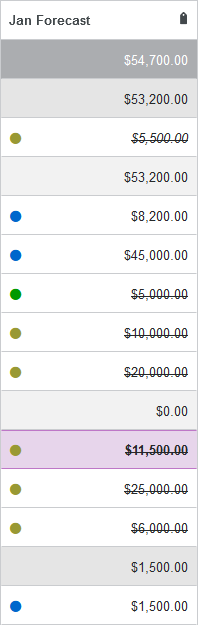
Now, when Sheila restricts the view to the Occurred tag, only the amounts from the child cells that are tagged Occurred are totaled in the cells for categories and sub-categories and Grand Total.
Other amounts are shown crossed out and are not included in the sums. See following screenshot for forecasting in January:
Filter investments by forecast status tags
In the
 Investments section, click on the Forecast Status Tags drop-down menu in the upper right corner.
Select or deselect Forecast Status Tags as desired. If you want to restrict the view to one specific tag, hover the row of the tag and click Only.
Select Apply.
In the Forecast columns, cells whose entries do not match your tag selection are crossed out. In the cells of the categories, sub-categories and the Grand Total row, only the amounts of the line items and placeholders whose entries are tagged to match your setting are summed.
To reset a filtering by forecast status, open the Forecast Status Tags drop-down menu and click Select All.