Import investment data
If you previously managed investments and their associated data in spreadsheets, you can import this data into Uptempo
About investment data imports
Note that when importing investment data, the existing records are always interpreted as full import when mapped with an existing line item. This means that all mapped cells are replaced by the value in the spreadsheet. You may have to correct any errors manually.
You can only import XLSX and XLS files.
The import uses only the first sheet of the Excel file. The first column is interpreted as the names of categories, sub-categories, line items and placeholders. All data up to the first empty cell in this column will be imported.
Structural annotation reference
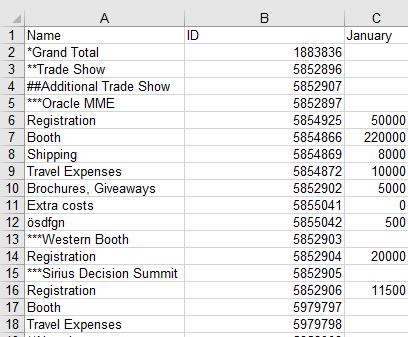
If you want to structure the rows in the import file into categories, sub-categories, line items and placeholders, use the following annotation:
Type | Structure Annotation | Notes | Example in Screenshot |
|---|---|---|---|
Root element: Grand Total |
| Not required in the import file | *Grand Total |
Category |
| **Trade Show | |
Sub-category |
| Number of | ***Oracle MME |
Line Item | No symbol in front of name | Registration | |
Placeholder |
| ##Additional Trade Show |
Updating existing investment items
If you want to update existing categories, sub-categories, line items and placeholders, you must map the records in the spreadsheets with the already created items in the system.
To do this, the second column of the imported spreadsheet must contain the Uptempo IDs. Name this column ID in the first row and enter the Uptempo IDs of the categories, sub-categories, line items and placeholders. You can determine the IDs by an export, see Export investment data. If an ID column is missing, the entries in the first column are interpreted as new items and will be added accordingly to the investment plan.
In the subsequent columns you can enter the data of the line items. Note that during the import you have the possibility to decide for which columns data has to be transferred. If you have columns with no data or with data that is not up-to-date, you can simply exclude them from the import.
Import investment data into Uptempo
Import investment plan data
In the
 Budgets section, click the Import button and select Investment Plan from the menu.
On the Import Data page, select the desired investment plan from the menu.
Click the Browse button to select your import file.
Click Map Fields.
Map your spreadsheet column headers to the corresponding column headers in the app. Include only columns that contain data that you want to import.
Click Merge Data to complete the import. An Import Summary is displayed.
Review the summary and click Done or Import Another File.
You have imported investment data.