Move activities
If you need to change the way your activity hierarchy is organized, you can move existing activities to other parts of the hierarchy. For example, you can move an activity from one campaign to another campaign.
You can move an activity under another activity as long as the target activity is a valid parent based on the rules that define your activity hierarchy. Put simply, if the system allows you to create a new activity of that type under a given parent, it also allows you to move an existing activity of that type under that parent.
If you're moving an activity that has descendants in the hierarchy, all descendants will also be moved along with the activity. The existing paths below the moved activity remain the same after the move (to learn more about activity hierarchy relationships and paths, see About activities and the activity hierarchy).
Moving an activity also has the following effects:
The moved activity (and any descendants) loses attributes inherited from its old ancestor activities, and instead inherits attributes from its new ancestor activities.
The moved activity's Impact Modeler projections are recalculated.
Any existing performance data (on the KPIs section) will be permanently deleted from the moved activity.
If the moved activity is connected to investments, these connections are kept if possible. If the new parent activity is also connected to investments, and these connections are not compatible, the system will ask you if you want to disconnect the moved activity's funding (and adopt the funding of the new parent activity instead), or keep the moved activity's existing funding (and adjust the new parent activity's funding instead).
Move an activity to a different part of the hierarchy
In the
 Activities section, find the activity you want to edit in the activity hierarchy panel, and click on the activity's name. The activity's details panel opens on the right: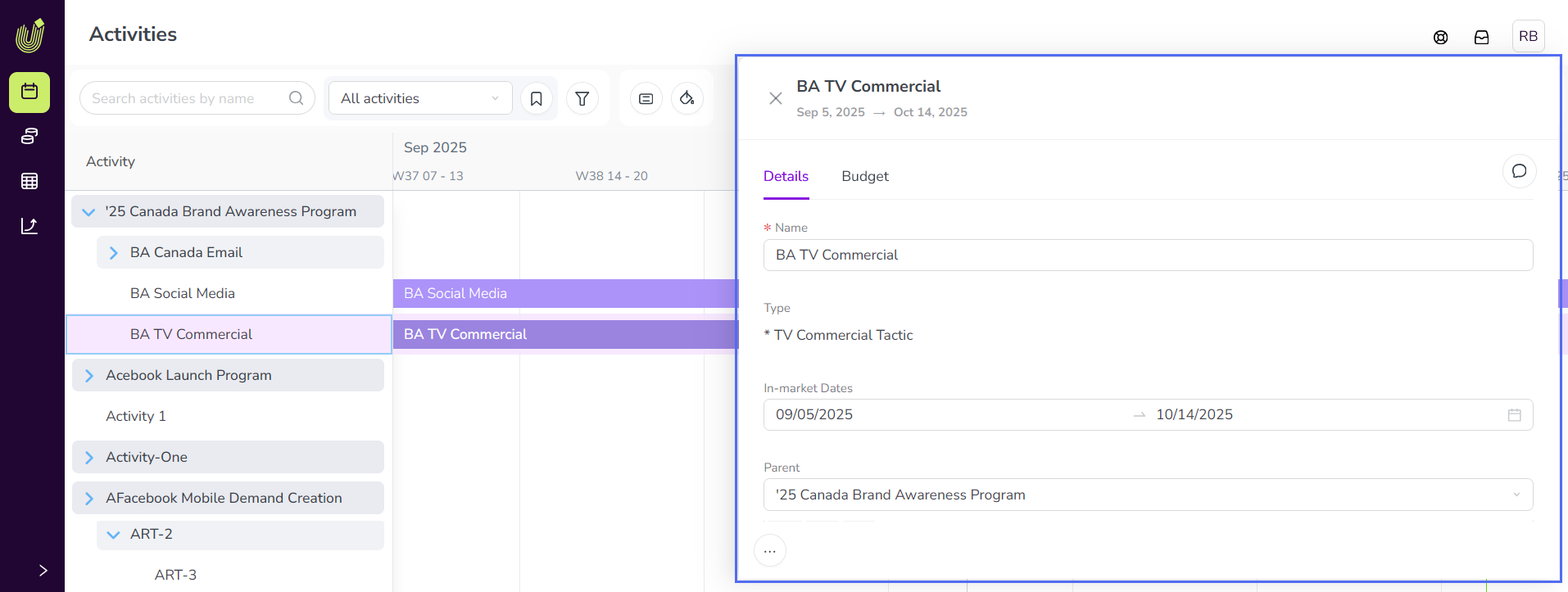
On the Details section, select the new parent activity that you want to move the activity under in the Parent menu.
In the confirmation dialog, click Continue.
The activity (and any descendant activities) are moved to the new parent activity with immediate effect.