What's new: 2026.1
Discover all the new Uptempo features introduced with the 2026.1 release, available from January 28, 2026.
Campaign Management: Activity Configuration
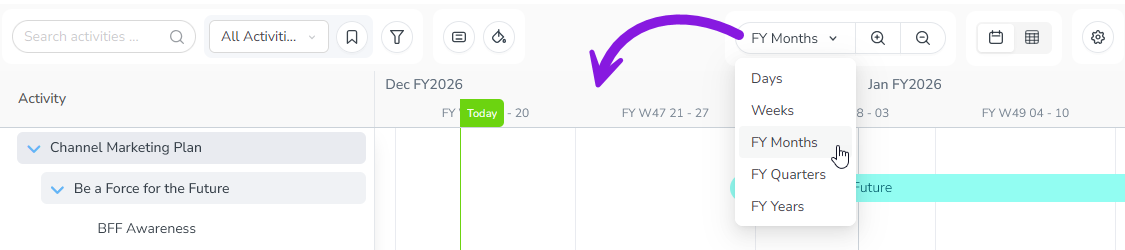
Support for fiscal years in Campaign Management
Campaign Management now supports customizable fiscal years, so you can plan campaigns and track performance according to your organization’s financial calendar:
Flexible fiscal year setup: Configure your Campaign Management to match your organization’s fiscal year. Many different fiscal year configurations are supported, from simple (calendar year with a custom start month) to complex (52/53-week years with custom quarters).
Consistent fiscal periods across Campaign Management: Your fiscal year is reflected throughout Campaign Management, including on the activity Timeline, Estimated Costs, KPIs, and Impact.
Clear fiscal year labels: Fiscal years are divided into periods and 13-week quarters according to your preferences, and are displayed with the appropriate labels throughout Campaign Management: for example, fiscal years are shown as "FY2027" instead of "2026", and "periods" replace months.
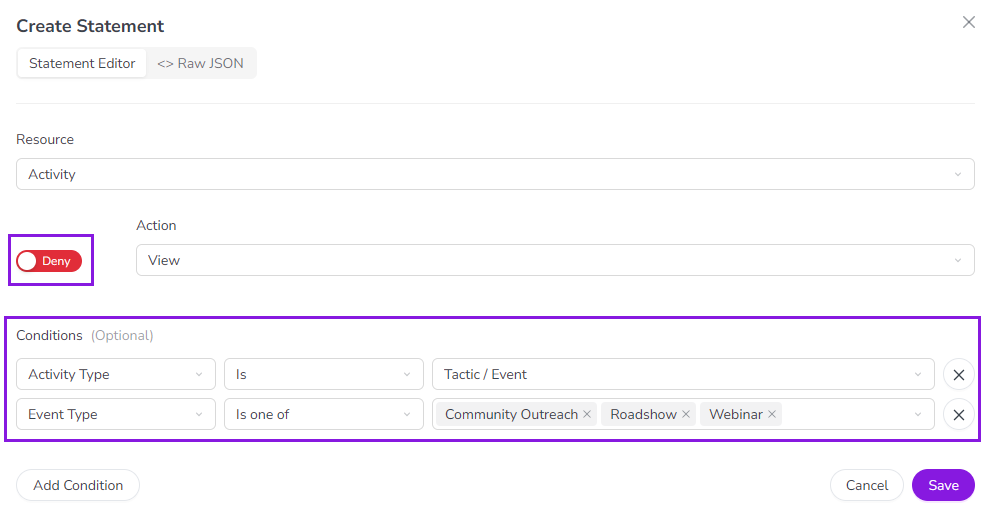
Set up conditions and deny statements with the visual statement editor
You can now use the visual editor to create access control statements that have conditions or deny access. This enhancement means administrators can set up full-featured statements entirely in the visual editor, making it easier and more accessible to work with activity access controls:
Easily set up conditions on statements: Add and configure conditions on access control statements without having to write complex JSON. Use intuitive menus to add and configure conditions with just a few clicks.
Create deny statements: Setting up a statement that blocks access to the specified resource is now as simple as switching the new effect toggle in the visual editor from Allow to Deny.
Streamlined activity type and type group configuration
We've completely redesigned the configuration experience for activity types and type groups to make setting up and managing your activity hierarchy simpler and more intuitive:
All types and type groups in one place: Activity types and type groups are now managed from a single, unified page. The new Types & Groups page shows all types and groups together in one list, so you can see at a glance which types belong to each group. With everything in one place, it’s significantly easier to understand and maintain your activity hierarchy.
More organized and intuitive settings: To make it easier to find the settings you need, activity types and type groups now have a simplified settings layout organized into easy-to-navigate sections. Plus, only the attributes that are attached to a type or type group are now shown, reducing visual clutter and keeping the focus on the information that matters.
Visual representation of activity rules: To provide a clearer view of how your activity hierarchy is structured, each activity type and type group's settings page now includes a diagram that shows its place in the hierarchy. These visualizations make it much easier to see how your activity types and type groups connect, validate your activity rules, and quickly identify (and fix) configuration issues.
→ Learn more about configuring activity types and type groups
Campaign Management: Activities
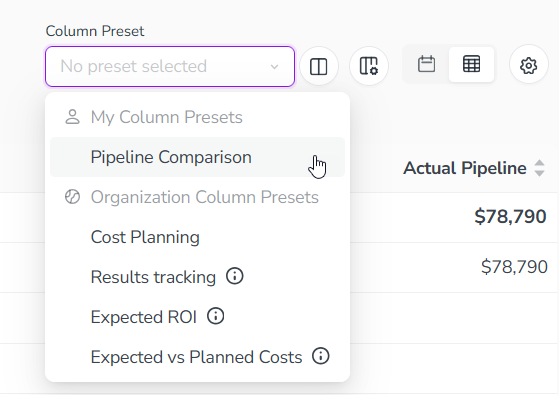
Save Summary column configurations as presets
You can now save your custom column configurations in the Summary display mode as presets, so you can quickly apply them again at any time.
Set up column presets for different tasks: With column presets, you don’t have to manually adjust the Summary table's columns every time you want to view different data. You can now create custom column setups tailored to your needs at each stage of the planning and execution cycle, and switch between them instantly with a single click. Plus, you can optionally link column presets to views, so that the right data columns are automatically displayed when you select a view.
Create and manage shared presets for your organization: As an administrator, you can also create column presets that are available to all Uptempo Campaign Management users in your organization, and conveniently manage them in one place.
→ Learn more about how to use column presets in the Summary display mode
Financial Management: Investments
More ways to distribute investment funds between connected activities
We’ve expanded the funds allocation options in the Activity Funding Panel to give you more flexibility, and help you allocate investment funds with less effort.
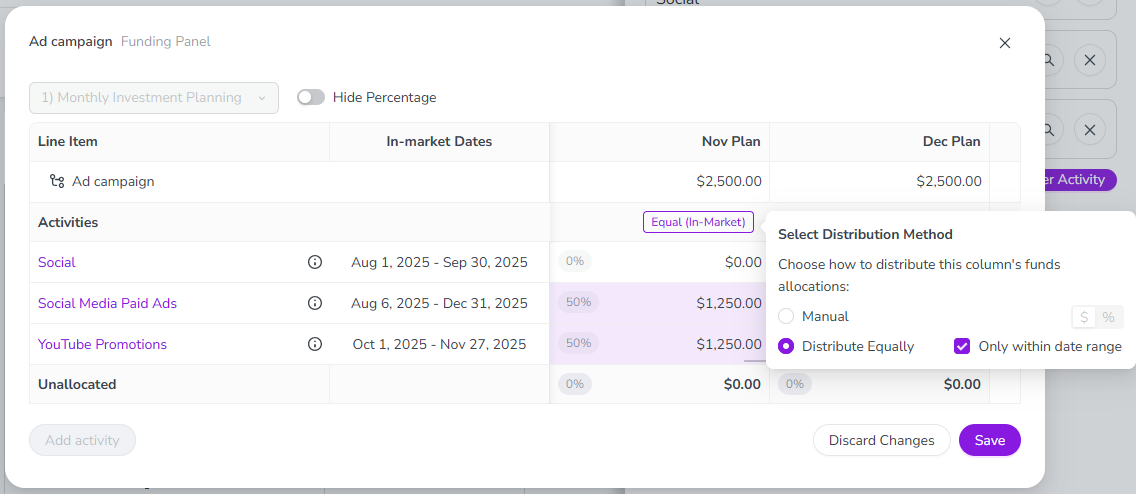
Manually allocate funds by percentage: When distributing funds manually between multiple connected activities, you can now assign each activity a percentage share of the total investment. Simply enter a percentage (up to two decimals), and the system will allocate the corresponding currency amount for you — no need to calculate it yourself.
Automatically allocate funds equally between connected activities: Automatic allocation now works even when multiple activities are connected to an investment. The new Distribute Equally method divides the investment evenly across all connected activities, and automatically recalculates allocations if activities change or if the investment amount is updated.
Optional date-based auto-allocation: If you have set date ranges on your budget columns, you can set Distribute Equally to allocate funds only to activities whose in-market dates fall within the column’s date range. This ensures funds are distributed only to activities relevant to that timeframe.
Smoother experience when connecting multiple activities: Adding more than one activity to an investment no longer forces the investment into Manual Allocation mode. Instead, when a second activity is connected, the system automatically switches the investment to the new Distribute Equally method. Because of this improvement, the Convert to Manual Allocation and Revert to Automatic Allocation buttons are no longer needed, and have been removed.
→ Learn more about distributing funds between multiple connected activities